Using Freebees in a Maitre'D Environment
When working in a Maitre'D environment, the POS and payment terminal communicate automatically, ensuring that there is no input error for the total amount. When Maitre'D communicates the purchase amount to the terminal, the terminal uses the SecurePay or SecureTable application to display the sale amount and, when a gift card is identified as the payment method, it will automatically switch to the Freebees app.

IMPORTANT! The procedure described below is for a purchase (redemption) using a gift card. Any other transaction using a gift card must be processed using the Freebees application in standalone mode.
To process a purchase (redeem) with SecureTable:
- On the Maitre'D workstation, print the guest check(s).
- Bring the guest check(s) with the payment terminal to the table.
- Identify which check you want to process and the desired payment method.
- Pass the payment terminal to the customer.
- For a customer who wishes to pay with a gift card, direct them to touch the green Gift Card button on the terminal screen.
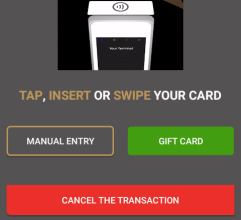
The Freebees main screen appears, allowing you to scan, swipe or manually enter the card number.
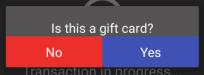
NOTE: If the customer swipes the gift card without touching the Gift Card button, the terminal will ask if the payment method is a gift card; touch Yes and the procedure will continue as indicated.
- After the server authorizes the transaction, the terminal displays the authorization number and the new card balance.
- Print the customer copy of the transaction receipt and return the card, the check, and the transaction receipt to the customer.
To process a purchase (redeem) with SecurePay:
- On the Maitre'D workstation, print the guest check and close the order.
- For a customer who wishes to pay with a gift card, select card as the payment method.
- When the purchase total appears on the terminal, direct the customer to swipe their gift card or manually enter the card number.
- After the server authorizes the transaction, the terminal displays the authorization number and the new card balance.
- Print the customer copy of the transaction receipt and hand it with the check to the customer.
