Change Merchant Password
Before using the terminal, a Merchant password was assigned during the initial configuration. The Merchant password protects against unauthorized users performing certain operations. You can change the Merchant password whenever you feel it necessary.

IMPORTANT! Do not forget the new Merchant password; the only ways to reset it is to use the Aministrator password or contact the technical support team.
To change the Merchant password:
- Touch the Action button on the main screen.

- Touch Settings.

- Enter the Merchant password and touch OK.
- On the Settings page, touch Passwords.
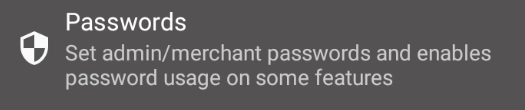
- In the Set password section, touch Merchant Password.

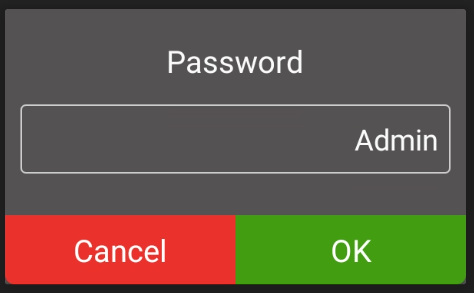
- Enter the Administrator password and touch OK.
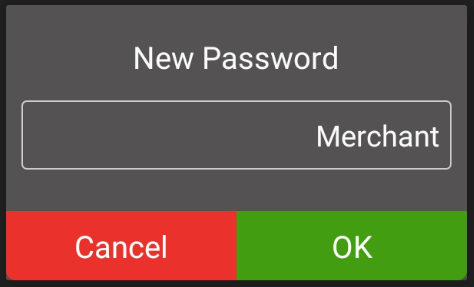
- Enter the new, 6-character password in the New Password field and touch OK.
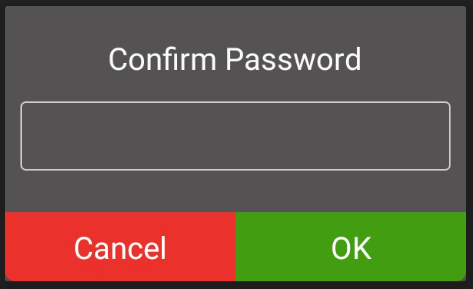
- Re-enter the new password in the Confirm Password field and touch OK.
If the passwords match, the terminal displays New password saved and returns to the Settings page.
If the passwords do not match, the terminal displays Invalid password and displays the Confirm Password field.