Refund
In order to process a refund, you must locate the original transaction from the list of transactions. While you can scroll through the list to find the original transaction, it can be faster to use the search function using the invoice number or authorization code, both of which appear on the original transaction receipt.

IMPORTANT! In an effort to prevent possible fraudulent refund claims, you should request the original transaction receipt from the customer before issuing a refund.
To refund a sale:
- Take the original transaction receipt from the customer.
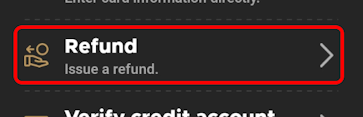
- Touch the Operations menu and touch Refund.
The Transactions screen appears.
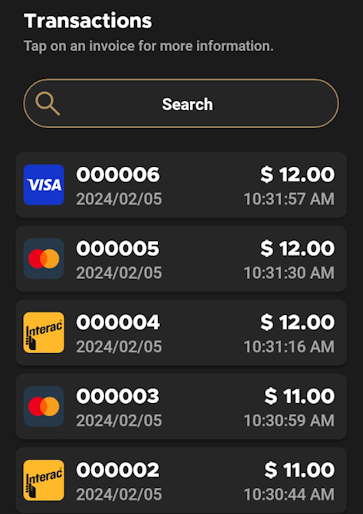
- Scroll to or search for the desired transaction to refund.

NOTE: Because all of a merchant's transactions processed on all terminals are saved immediately to the server, the list of transactions may be quite long. For more information on searching for a transaction, refer to the Search for a Transaction procedure.
- Touch the desired transaction to display the details.
- Touch Refund.

- If prompted, the Merchant or Admin password (according to the selected password configuration) and touch Confirm.
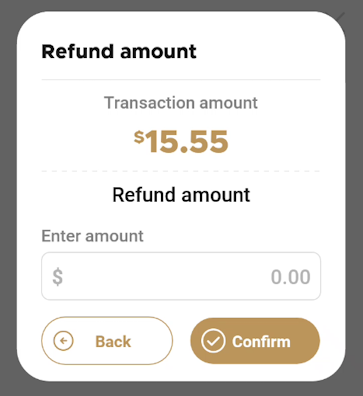
- Use the number pad to enter the amount to refund and touch Confirm; you can enter either the full or a partial amount of the original transaction.
- Hand the terminal to the customer or ask them to present the card used for the original transaction to tap, insert, or swipe their payment card.
- Take the terminal back from the customer.
- After authorizing the refund, the terminal prints the merchant copy of the transaction receipt. To print the customer copy, touch Print receipt or touch No receipt if no customer copy is requested.
- Return the original transaction receipt to the customer.
