Advanced POS UI Screen Issues
This troubleshooting guide will be helpful if an existing Maitre'D database is upgraded to version 7.08.000.410 or later for use with the Advanced POS User Interface (HTML POS).
Legacy preferential screens and Sreen Layouts can have defects that would prevent the Advanced User Interface from working correctly. These defects may even prevent the Advanced POS from loading properly.
Symptoms
- The POS will not start in Advanced POS UI mode, but does start in Legacy POS UI mode.
- In advanced UI mode, the POS hangs, becomes unresponsive or crashes when specific screens are accessed.
- In advanced UI mode, the POS hangs, becomes unresponsive or crashes when logging in with certain employees.
- Some Preferential Screen or Screen Layout buttons look awkward, especially those located near the edges of the screen.
Solution
To resolve these issues, follow the steps below:
- Temporarily revert to the Legacy POS User Interface. (See below)
- Locate and repair buttons expanding beyond the screen boundaries in Preferential Screens and Screen Layouts.
- Locate and repair (or delete) overlapping buttons in Preferential Screens and Screen Layouts.
- Re-enable the Advanced POS User Interface.
Revert to the Maitre'D Legacy POS User Interface
-
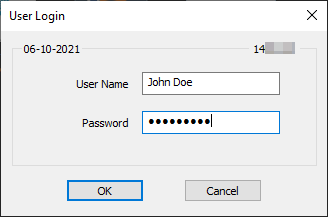
Logon to the Maitre’D Back-Office with appropriate credentials. (Distributor or System Owner)

- Start the Point of Sale Control module.

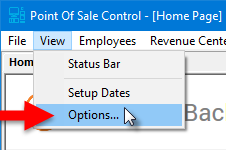
- Click on the View menu and select the Options... option.
- The Point of Sale Control module's options window opens on the Configuration branch.
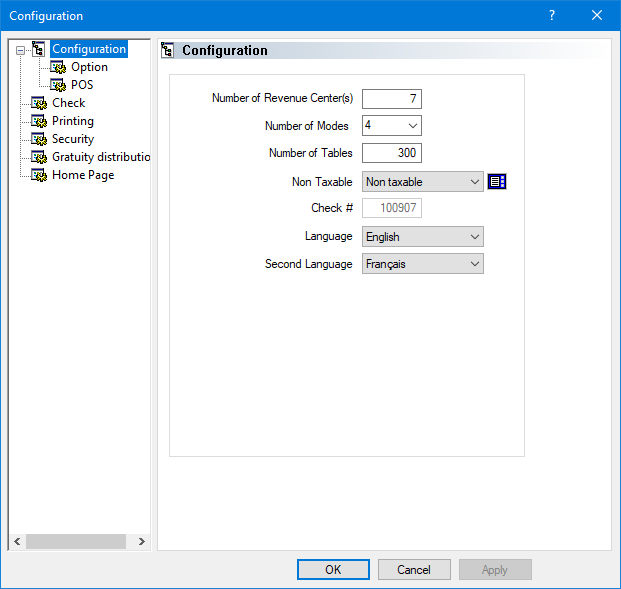
- Click on the POS sub-branch and disable the Use advanced POS UI option.

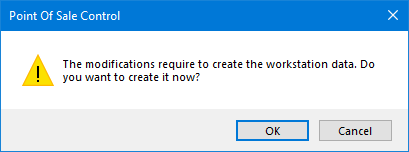
- Click OK. You will be asked to create the workstation data. Click OK to proceed. The entire process could take from a few seconds to a few minutes, depending on your system's performance and the number of workstations on your Maitre'D license.
- The options window will close, and you will be back to the Point of Sale Control module.
At this point, the POS workstations should automatically restart with the Legacy POS User Interface.
