Divisions
Definition
Divisions are sub-categories of Big Divisions and are are also used for reporting purposes. Divisions must be created before sales items can be created.
Examples :
- Starters
- Soups
- Salads
- Pasta
- Steaks
- Burgers
- Sandwiches
- Desserts
- Beverages
- Beers
- Wine
- Cocktails
- etc...

NOTE: Since Division are sub-categories within Big Divisions, these are more precise and numerous. It is common to see menus with 50 divisions or more. Up to 100 divisions can be created in Veloce.
How to create divisions
-
Login to the Veloce Back-Office.

-
Start the Point of Sale Control module.

- Click on the Divisions shortcut. You can also use the Sales menu and select the Divisions... option.

- The list of Divisions appears. Click on an existing Division to modify it, or click on an empty space to create a new one.
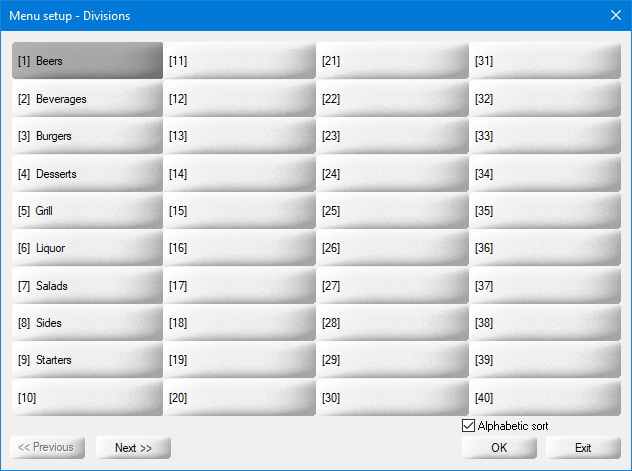


Use the << Previous and Next >> buttons to navigate between screens. 100 Division placeholders are available.

Click OK to modify the selected Division.

Click Exit to close the Divisions list.
Alphabetic Sort
By default, the list of Divisions is sorted by the numerical value of each division. Use the checkbox to sort the list alphabetically instead.
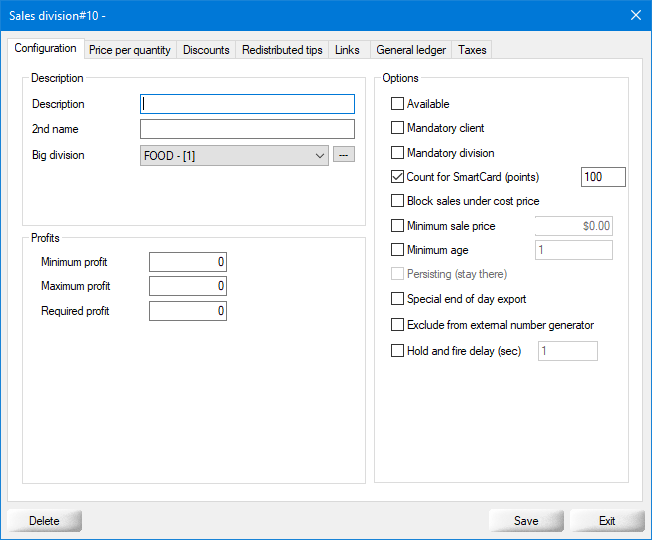
- Configure the Division's parameters:
Description
Description
Type a meaningful description for this Division
2nd Name
Type a secondary description for this Division. This is generally used as an alternate description in a different language for multi-language setups.
Big Division
From the drop-down list, select the Big Division to which this Division belongs.
Options
Available
Enable this option to make this division available for sales. If left un-checked, all items from this division will be unavailable at the POS
Mandatory client
If enabled, a client account will need to be assigned to the transaction if an item of the division is on the invoice.
Mandatory division
If enabled, at least one (1) item of the division will have to be added on the invoice to complete it.
Count for SmartCard (points)
Used for the fidelity accumulation system.
Block sales under cost price
Prevent the sale below the cost price for all items in this division.
Minimum sale price
Set the minimum sale price for the items within this division.
Minimum age
Age of the customer will have to be confirmed (i.e.: Alcohol sales).
Persisting (stay there)
The list of division items will remain displayed even after ordering a first item instead of going back to the original menu page.
Special end of day export
Items from the division will be included in the special end of day export. (Used with third-party integration, i.e WISK)
Exclude from external number generator
Exclude the items to get an external number generated automatically
Hold and fire delay (sec)
The delay before the items are sent to the order printers, in seconds.
Taxes per Division
It is possible to assign taxes for each division. To do so, click on the Taxes tab and select the appropriate tax(es) which will apply to all items within this division.

Click the Delete button to remove this Division.

Click the Save button to save changes and exit.
Click the Exit button to close this window without saving changes.
