SecurePay Application - Basic Navigation
Starting the SecurePay Application
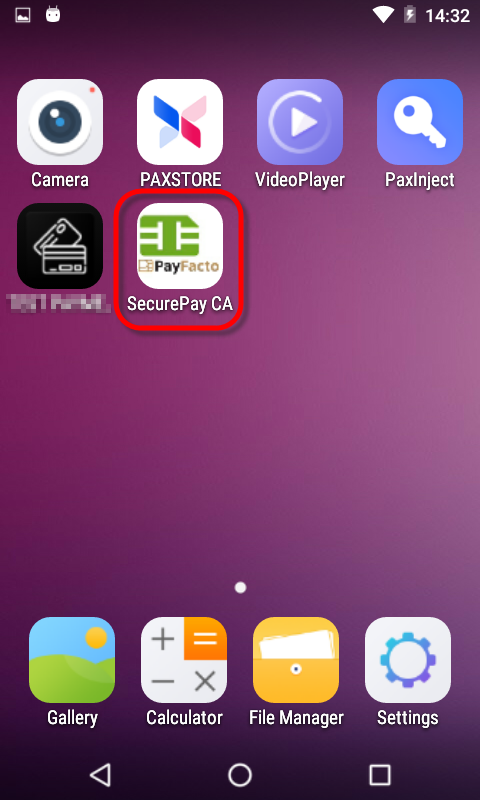
If the SecurePay application does not start automatically, simply touch the appropriate icon on the Android home screen. A splash screen will briefly be displayed, followed by the SecurePay home screen.



Basic Navigation
Settings

The Settings button is used to access SecurePay's configuration options. This icon appears in the top-right corner of the SecurePay home screen.
Home

When available, the Home button will appear in the top-right corner of the screen. Use it to jump directly to the SecurePay home screen without saving changes.
Back

When available, the Back button will appear in the top-left corner of the screen. Use it to go back to the previous screen without saving changes.
Default Password
The SecurePay application settings are protected by a password. The default password on a new installation is 1234.

NOTE: It is highly recommended to change the default password as soon as possible. See SecurePay Application Configuration for the detailed procedure.
Exit the SecurePay Application
- To exit the SecurePay application, swipe the terminal's screen either from the top edge going down, or the bottom edge going up, then touch the Android Home (circle) button.
- You will be prompted to enter a passcode to exit the application. Enter the passcode and touch the OK button.
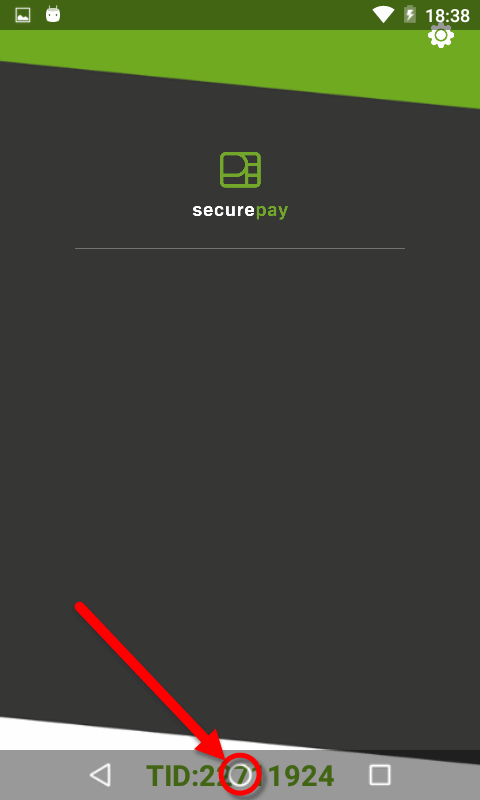

NOTE: The default passcode after a new installation is 1234. It is the same as the settings password.
