Manual Card Entry Sale with Tip
If you work in the service industry (bar, delivery, restaurant, transportation), the most common transaction is a purchase with the option to add a tip, where the client uses their credit or debit card as the method of payment. This procedure explains how to manually process a sale if the card cannot be read using the tap, insert, or swipe methods.

NOTE: This procedure is applicable only if you have enabled the tipping option. If the tip option is not enabled, please refer to the Enable Tipping procedure.
To manually process a sale with the option to tip:
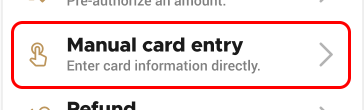
- Touch the Operations menu and touch Manual card entry.
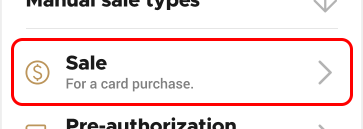
- From the Manual sale types menu, touch Sale.
- Using the number pad, enter the sale amount.
- Touch OK.

- Enter the merchant password and touch Confirm. The Total Sale screen appears with the tip options.
- Hand the terminal to the customer so they can select whether to include a tip percentage, amount, or to not include a tip. After the customer selects their tipping option, the Total Sale screen updates with the tip added to the sale amount.
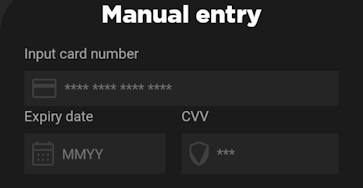
- Use the number pad to enter the:
- Card number in the Input card number field.
- Card expiration date using the MMYY format in the Expiry date field.
- Card security code in the CVV field.
- Touch the Confirm button.
- After authorizing the sale, the terminal prints the merchant copy of the transaction receipt. To print the customer copy, touch Print receipt or touch No receipt if no customer copy is requested.
