Create Taxes - Setup Screen
When a new tax is created or when an existing tax is modified, the tax properties open on the Setup branch.
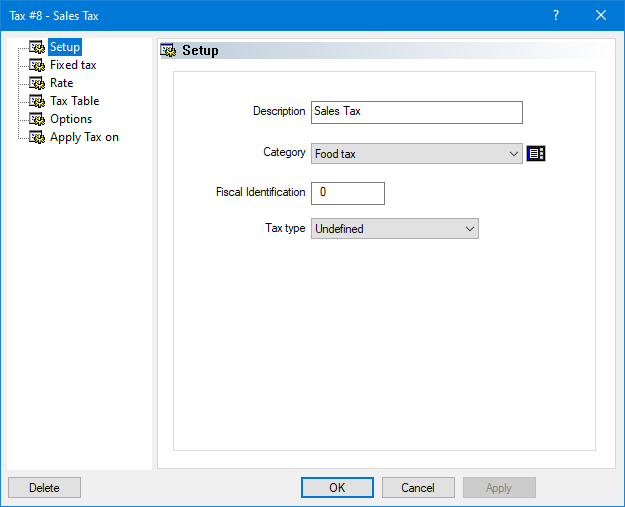
Description
Type a meaningful description for the tax. You can use up to 20 characters. This description will appear on guest checks, POS reports and back-office reports.
Category
From the drop-down list, select the tax category which this tax belongs to.
Fiscal Identification
This field is used in Russia only. Type in the VAT entry number to use from the VAT table of the OPOS driver for the Spark 617TF fiscal printer.
Tax Type
This field is used in the province of Québec, Canada only. Select the appropriate tax type for the Québec Sales Recording module (SRM). If you are not located in Québec of if you are exempt from using the SRM, set this drop-down list to Undefined.
.jpg "Button - Delete")
Click Delete to remove this tax and return to the list of taxes.
.jpg "Button - OK")
Click OK to save changes and exit.
.gif "Button - Cancel")
Click Cancel to exit without saving.
.gif "Button - Apply")
Click Apply to save changes without exiting.
To learn more about the available options within taxes, see the related topics below:
