Dark Mode for the Advanced POS User Interface
This article describes how to use the Dark Mode for the Advanced POS User Interface. By default, the Advanced POS User Interface uses Light Mode, which can be very bright in low-light conditions. The Dark Mode is available to reduce the amount of light emitted from the POS screen and reduce eye strain.

IMPORTANT! This feature is available in Maitre'D 7.08.000.440 or later.
Enable Dark Mode
By default, the Advanced POS User Interface uses Light Mode. This configuration is at the workstation level, therefore every workstation can be configured independently. Also, a manual override setting is available on the POS screen, allowing employees to toggle between Light and Dark modes on the fly.
-
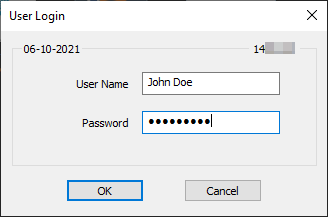
Logon to the Maitre’D Back-Office with appropriate credentials. (Distributor or System Owner)

-
Start the Point of Sale Control module.

-
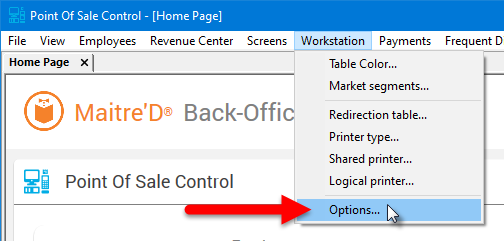
Click on the Workstation menu and select the Options... option.
-
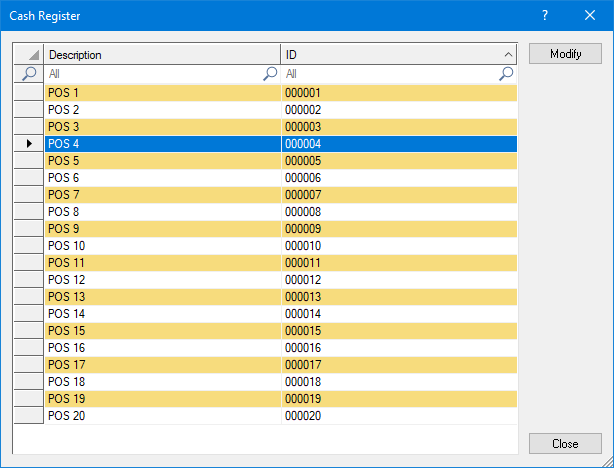
The list of available workstations will be displayed. Select the workstation for which you wish to assign redirection tables and click the Modify button.
-
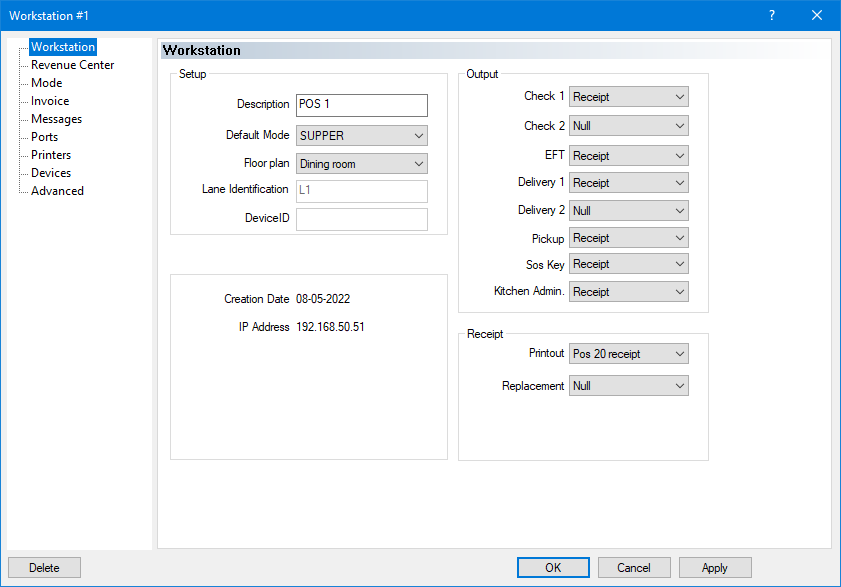
The workstation's properties open on the Workstation branch.
-
Click on the Advanced branch and enable the Dark Mode option.
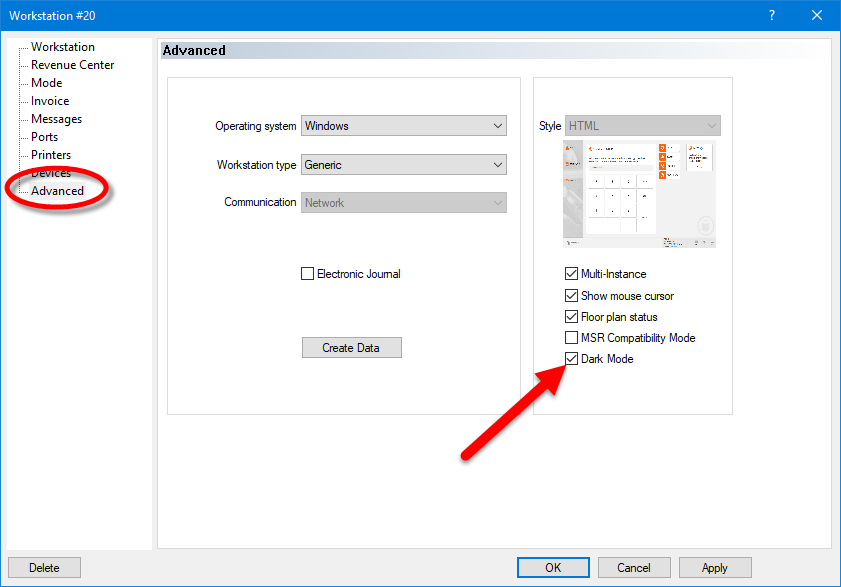
IMPORTANT! This option determines the default behaviour of the workstation. With Dark Mode enabled, the workstation will always start in Dark Mode after a reboot or after recreating workstation data.
Users can always override this configuration by using the Light / Dark toggle switch as explained further below.
- Click OK. The workstation options window will close and bring you back to the list of workstations.
- Repeat this process as necessary for all workstations which needs to use Dark Mode by default.
- Once all workstations have been configured, you may close the workstation's list, close the Point of Sale Control module, and logout of the Maitre'D Back-Office.
The workstations will automatically update to Dark Mode as configured:
Light mode

Dark mode

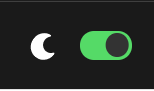
Light Mode / Dark Mode toggle switch
Changing to Dark Mode in the Maitre'D Back-Office determines the default behaviour of the workstation. However, it is always possible for the user to toggle between Light Mode and Dark mode based on personal preferences.
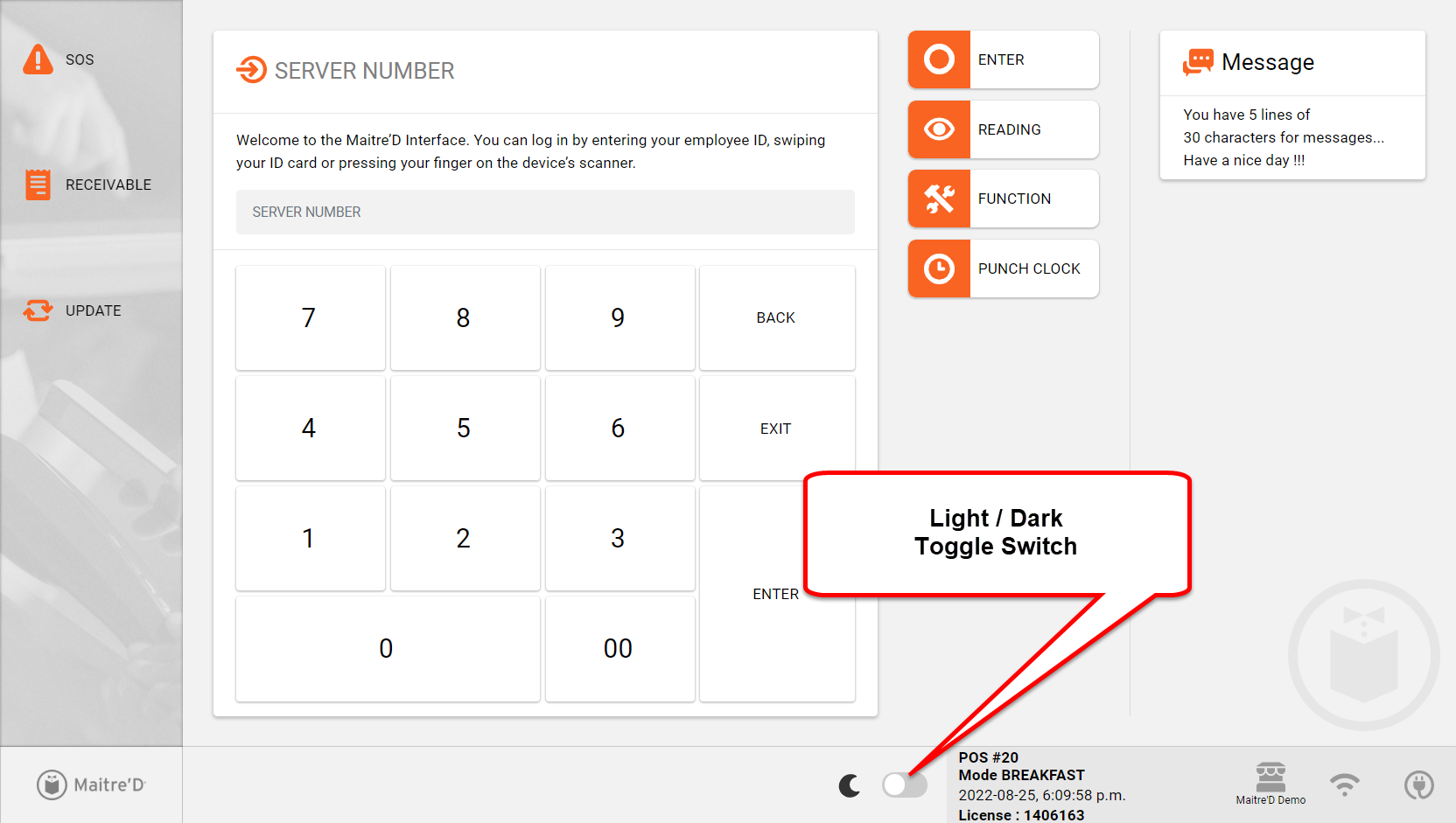
To toggle between Light and Dark modes, simply press and hold the toggle switch for 2 to 3 seconds. A circle animation will appear around the switch, and the display mode will change once the circle is completed.
Toggle in Light Mode
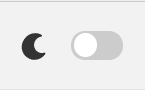

Press and hold

Toggle in Dark Mode