Hidden screen layout for the Advanced POS User Interface
This article describes how to use the Hidden Screen Layout for the Advanced POS User Interface. By default, the Advanced POS User Interface uses a static screen layout which is always visible, similar to the one used with the Legacy POS User Interface. With the Hidden Screen Layout, the space normally taken by the screen layout can be used to accommodate larger preferential screen buttons.
Enable Hidden Screen Layout
By default, the Advanced POS User Interface uses a static screen layout. This configuration is global, therefore it will apply to all the workstations on your Maitre'D POS system. Here is how to enable the Hidden Screen Layout:
Stop the Maitre'D Back-Office Server and close applications:
-
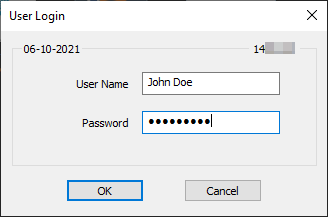
Logon to the Maitre’D Back-Office with appropriate credentials. (Distributor or System Owner)

- Start the Server Control module.

- Click on the File menu and select the Stop Server option.
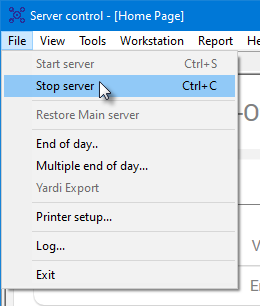
- Once the server is stopped, close any open modules and logoff from the Maitre'D Back-Office.

Edit the BO.INI file
- Using FIle Explorer, browse to C:\POSERA\MaitreD\DATA and locate the BO.INI file.

- Open the BO.INI file using any text editor, such as Notepad or Notepad++.
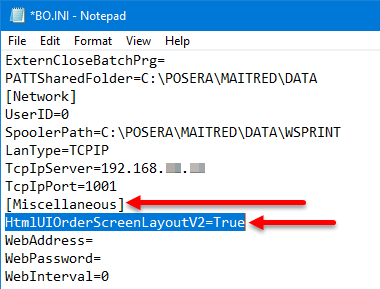
- Locate the [Miscellaneous] Section. Then, add the following line under the [Miscellaneous] section:
HtmlUIOrderScreenLayoutV2=True

NOTE: Setting this value to "True" enables the Hidden Screen Layout. Setting it to "False" uses the default Static Screen Layout. Omitting the line altogether is the same as setting it to "False".
- Save your changes to the BO.INI file and close it.
- You may also close the File Explorer window.
Make Workstation Data and Start the Back-Office server
-
Logon to the Maitre’D Back-Office with appropriate credentials. (Distributor or System Owner)
- Start the Server Control module.
- Click on the Make Workstation Data quick link.
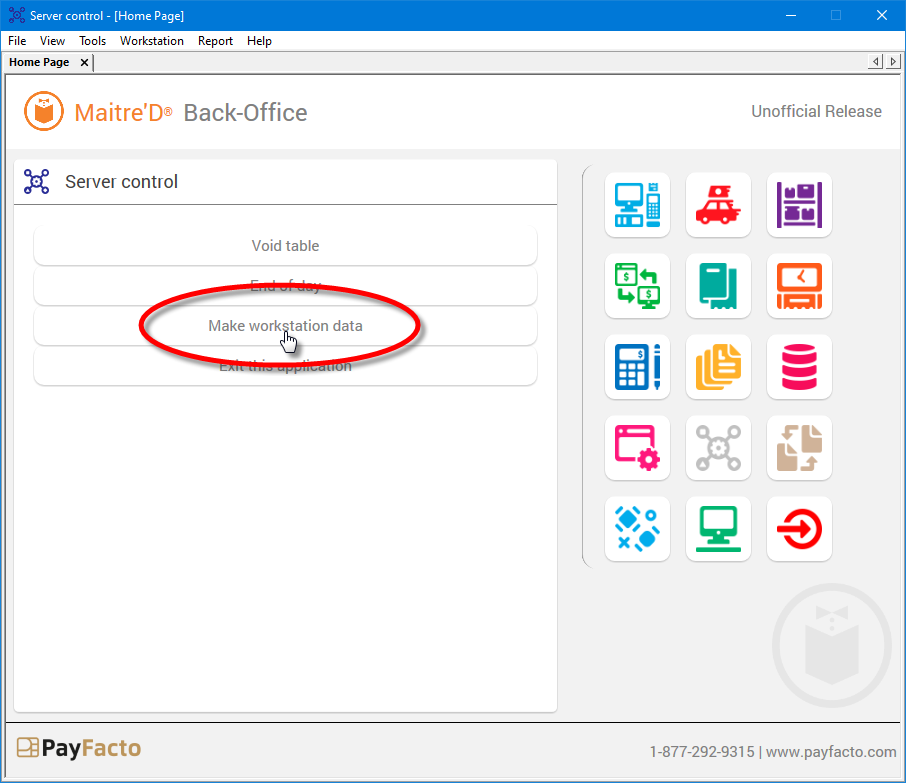
- Wait for the process to complete. The entire process could take from a few seconds to a few minutes, depending on your system's performance and the number of workstations on your Maitre'D license.

- Click on the File menu and select the Start Server option.
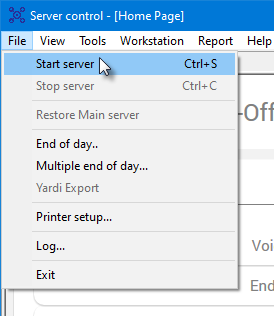
- Once the server is started, you may close any open modules and logoff from the Maitre'D Back-Office.
Start the POS Workstations. The screenshot below illustrate the difference between the Static and Hidden screen layout.
Advanced POS User Interface with Static Layout

Advanced POS User Interface with Hidden Layout

To access the top or bottom layout buttons on the Hidden Screen Layout interface, touch either the top or bottom Option keys, respectively. Layout buttons will appear as an overlay on top of the preferential screen buttons.
Top layout buttons appearing as overlay:

Bottom layout buttons appearing as overlay:

